


 May 29,2026
 By docstrail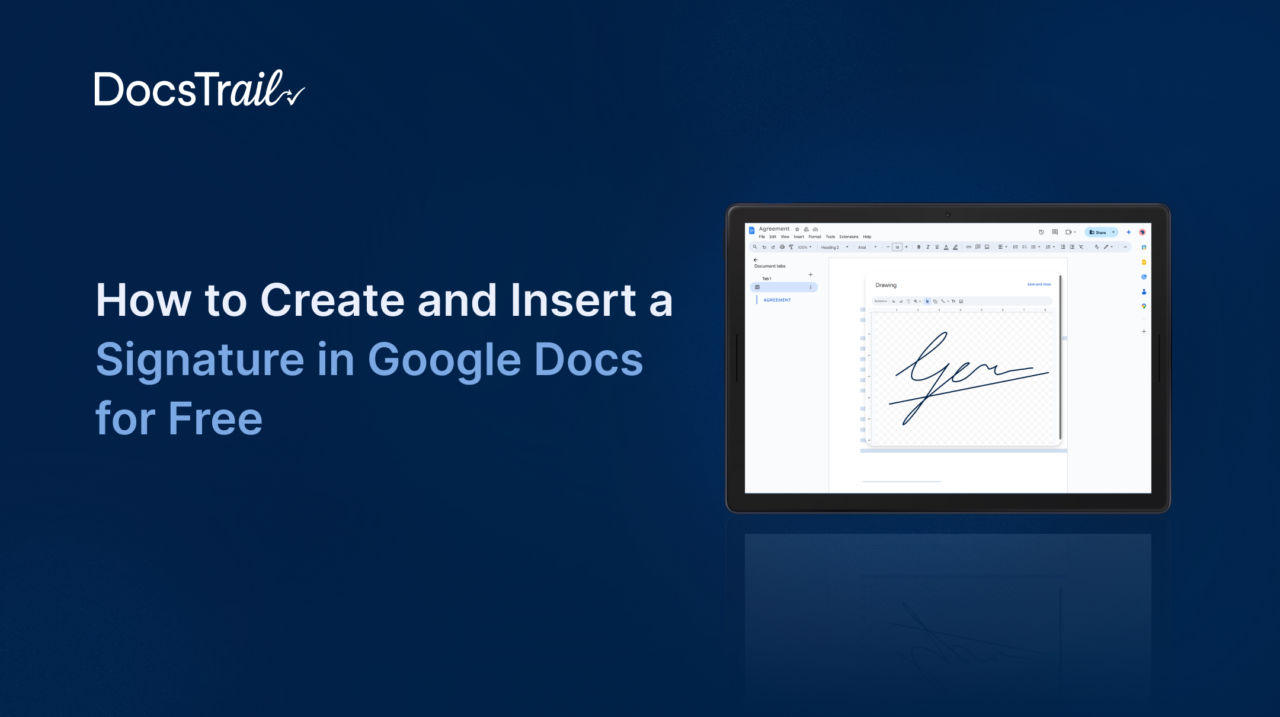
Google Docs has become the default document tool for millions of individuals, teams, and businesses around the world. It is collaborative, cloud-based, accessible from any device, and completely free to use. But there is one task that has tripped up Google Docs users for years — signing documents without printing them out first.
If you have ever found yourself searching for how to insert a signature in Google Docs, you already know the frustration. The answer is not always obvious, the built-in options have limitations, and the advice online ranges from “just draw it with your mouse” (not exactly professional) to “install this add-on” (which often requires account permissions your organization may not allow).
This guide covers every method clearly — from Google’s own built-in tools to the most reliable free platform for creating legally binding signatures that actually hold up — so you can stop printing and start signing digitally in a way that looks professional and works properly.
Why Signing Google Docs Is More Complicated Than It Should Be
Google Docs is excellent at most things, but document signing has never been its strongest suit. For years, the only native way to add a signature was through the Insert > Drawing feature — which technically works, but produces a result that looks hand-drawn with a mouse and carries no legal weight beyond showing that someone made a squiggle at the bottom of a page.
Google introduced a native eSignature feature through Google Workspace in recent years, but it has important limitations: it requires a paid Google Workspace Business Standard or higher subscription, it is not available to personal Google account users, and it does not generate the kind of comprehensive audit trail that business-grade document signing requires.
The result is a gap that leaves a large number of Google Docs users — freelancers, small businesses, educators, HR teams, and remote workers — looking for practical alternatives. The good news is that the alternatives are genuinely good. Understanding how to insert a signature in Google Docs properly means knowing which method fits which situation, so let’s go through each one.
Method 1: Google’s Built-In Drawing Tool (Free, No Account Needed)
This is the most basic approach to how to insert a signature in Google Docs and it requires nothing beyond Google Docs itself. Here is how it works:
- Step 1: Open your Google Doc and place your cursor at the point in the document where you want the signature to appear — typically above the signature line.
- Step 2: From the top menu, click Insert → Drawing → + New. A blank drawing canvas will open in a pop-up window.
- Step 3: In the drawing toolbar, click the line tool dropdown and select Scribble. Your cursor will change to a crosshair.
- Step 4: Use your mouse, trackpad, or touchscreen stylus to draw your signature on the canvas. If the result does not look right, press Ctrl+Z to undo and try again.
- Step 5: When you are satisfied, click Save and Close. Your drawn signature will appear in the document as an image. You can click and drag it to reposition it, and use the resize handles to adjust the size.
When this works well: Internal documents, informal acknowledgements, personal forms, and any situation where the document is between people who trust each other and the legal stakes are low.
When it falls short: The drawing tool produces a signature image — it does not generate any audit trail, timestamp, or identity verification. Anyone with edit access to the Google Doc could technically alter or remove the signature after it is placed. For business contracts, employment agreements, NDAs, or any document where legal enforceability matters, this method does not provide adequate protection.
Method 2: Upload a Signature Image (Cleaner Look, Same Limitations)
If you want your signature to look more like your actual handwriting and less like something drawn with a mouse, uploading a signature image is a better approach. This is the second most common answer to how to insert a signature in Google Docs and here is the process:
- Step 1: On a white piece of paper, sign your name with a dark pen. Make the signature reasonably large — at least a few inches wide.
- Step 2: Take a clear photo with your phone or scan the paper. Transfer the image to your computer.
- Step 3: Open a photo editing tool (even Google Photos or a basic image editor works) and crop the image tightly around your signature. Set the background to transparent if possible — this prevents a white rectangle from appearing on your document.
- Step 4: In your Google Doc, place your cursor where you want the signature and go to Insert → Image → Upload from computer. Select your signature image file.
- Step 5: Once inserted, click on the image to resize it appropriately. Use the image options to set text wrapping if you want surrounding text to flow naturally around it.
When this works well: The result looks considerably more professional than a mouse-drawn scribble, and it is still completely free. For low-stakes documents where appearance matters but legal enforceability is not a primary concern, this is a solid option.
When it falls short: Like the drawing method, uploading a signature image does not produce any legal audit trail. The image can be copied, moved, or deleted by anyone with document access. It is a visual representation of your signature, not a verified signing event.
Method 3: Google Workspace’s Native eSignature Feature
Google introduced a built-in eSignature tool for Google Docs as part of its Workspace platform. If you are asking how to insert a signature in Google Docs in a more formal, workflow-driven way and your organization has the right Workspace plan, this option is worth knowing about.
How to access it:
Open your Google Doc, click on Insert in the top menu, and look for eSignature (or Signature field) in the dropdown. If you see this option, your account supports it. If you do not see it, your plan does not include the feature.
Once enabled, you can add signature fields directly into the document, assign them to specific recipients by email, and send the document for signature. Recipients receive a notification, open the document, and sign within the Google interface.
Key requirements and limitations:
- Available on Google Workspace Business Standard, Business Plus, Enterprise, and Education plans
- Not available on free personal Google accounts
- As of 2026, audit trail depth and compliance documentation are more limited compared to dedicated eSignature platforms
- Multi-party signing capabilities are more constrained than specialist tools
For organizations already on qualifying Workspace plans who want the simplest possible integration without leaving the Google ecosystem, this is a worthwhile option. For everyone else — which is the majority of people searching for how to insert a signature in Google Docs — methods three and four below offer better results.
Method 4: Use DocsTrail with Your Google Doc
This is the method that fills the gap that Google’s native tools leave open. For anyone who needs to understand how to insert a signature in Google Docs in a way that is legally binding, professionally presented, and properly verified — using DocsTrail alongside your Google Doc workflow is the right approach.
Here is how it works in practice:
Step 1: Export your Google Doc as a PDF
In Google Docs, go to File → Download → PDF Document (.pdf). This saves your document as a PDF to your device. Most formal agreements — contracts, offer letters, NDAs — are sent as PDFs rather than editable Google Docs files anyway, so this step fits naturally into a professional workflow.
Step 2: Upload to DocsTrail
Go to Free Online Document Signing and upload your PDF. No account is required to get started. The platform accepts PDF, Word, PNG, and JPG files.
Step 3: Create your signature
DocsTrail gives you three ways to create a signature: type your name in a professional handwriting-style font, draw it with a mouse or touchscreen, or upload an image of your actual handwritten signature. All three options produce a clean, professional result.
Step 4: Place and finalize the signature
Use drag-and-drop to position your signature exactly where it belongs on the document. Add dates, initials, or additional fields as needed. When everything is positioned correctly, finalize the document.
Step 5: Download or send
Download the signed PDF immediately, or if you need someone else to sign, enter their email address, assign their signature fields, and send. They receive a secure link, sign from any device, and you receive the completed document with a notification.
What makes DocsTrail different from Google’s built-in options:
Every document signed through DocsTrail comes with a complete audit trail — timestamps, signer identity, IP address, device information, and a tamper-evident record that proves the document has not been altered since signing. This is what converts a signature from a visual mark into a legally defensible signing event that holds up under scrutiny.
The platform is compliant with the ESIGN Act and eIDAS Regulation, meaning your signatures carry the same legal weight as handwritten ones for the vast majority of business documents. For anyone who has been looking for how to insert a signature in Google Docs in a way that goes beyond placing an image on a page, this workflow delivers what the built-in Google tools do not.
Method 5: Google Docs Add-Ons (Third-Party Extensions)
Google Workspace Marketplace offers several eSignature add-ons that integrate directly into the Google Docs interface. These extensions add signature functionality without requiring you to leave Google Docs entirely.
To access add-ons, go to Extensions → Add-ons → Get add-ons in the Google Docs menu, then search for “eSignature” or “digital signature.” You will find several options with varying features and pricing.
When add-ons make sense: If your workflow is heavily Google Docs-centric and you prefer not to export to PDF before signing, an add-on can streamline the process by keeping everything within the Google interface.
Points to verify before using an add-on:
Check whether the add-on requires access to your entire Google Drive — some add-ons request broader permissions than necessary. Verify that the signature it produces comes with an audit trail rather than just inserting a signature image. Confirm that the add-on’s free tier covers what you actually need before investing time in setup.
Which Method Is Right for You?
Here is a clear summary to help you decide:
You need a quick signature for a low-stakes internal document and do not want to leave Google Docs → Use the Insert → Drawing method or upload a signature image. It is fast, free, and appropriate for informal use.
Your organization has a paid Google Workspace plan → Try Google’s native eSignature feature first and evaluate whether it meets your compliance needs.
You need a legally binding signature with a proper audit trail — for a contract, employment agreement, NDA, or any document with business or legal consequences → Export your Google Doc as a PDF and use DocsTrail. This is the most reliable free path to a properly compliant, legally enforceable signature.
You prefer to stay entirely within the Google Docs interface and need legally compliant signing → Explore Workspace Marketplace add-ons carefully, verifying that they generate proper audit trails.
Why the Audit Trail Matters More Than Most People Realize
When people search for how to insert a signature in Google Docs, the audit trail is almost never the first thing on their mind. But it is often the most important factor in determining whether the signature is actually useful when it matters most.
An audit trail is a chronological, tamper-evident record of everything that happened during the signing process. It captures when the document was sent, when the recipient opened it, when they signed, what device and IP address they used, and a cryptographic confirmation that the document has not been altered since the signature was applied.
Without this record, a signed document is just a file with a mark on it. With it, you have evidence that a specific, identifiable person reviewed and agreed to a specific version of a specific document at a specific time. That distinction matters enormously in disputes, compliance audits, and any situation where you need to prove that an agreement was genuinely made.
Google Docs’ built-in drawing and image methods produce no audit trail. Google Workspace’s native eSignature feature produces a partial record. DocsTrail produces a complete, legally compliant audit trail on every signed document — including on the free plan.
Practical Tips for a Professional Result
Regardless of which method you use to address how to insert a signature in Google Docs, these tips will help you get a cleaner, more professional outcome:
Size matters
Keep your signature at a realistic scale. A signature that fills half the page or is too tiny to read both look unprofessional. Match the size to what a real handwritten signature would look like in the space.
Transparent backgrounds
If you are uploading a signature image, crop it with a transparent background (PNG format supports this) rather than leaving a white rectangle around it. This makes the signature blend naturally with the document.
Signature placement
Position your signature on or just above the signature line, not floating in the middle of the page. If there is designated signature space in the document, use it consistently.
Download as PDF before sending
Whether you sign within Google Docs or export to a signing platform, always send the final version as a PDF. PDFs cannot be accidentally edited by recipients, which protects both the document content and the integrity of the signature.
Keep a copy
Store the signed document in a logical location — Google Drive, a shared team folder, or the platform’s own document storage. A signature that nobody can find three months later is not much use.
Getting Started with DocsTrail
If you came here looking for the most reliable free method for how to insert a signature in Google Docs that produces a legally binding result — the workflow is straightforward: create your document in Google Docs, export it as a PDF, upload it to DocsTrail, sign, and download.
It takes under three minutes for most documents. The signed file is clean, professional, legally compliant, and backed by a full audit trail. There is no need for printing, scanning, or endless email threads trying to confirm whether someone signed the latest version.
That is what a modern paperless document workflow actually looks like — and it is completely free to get started. Ready to sign your first document? Upload your PDF and sign for free — no account required. Sign Documents Free with DocsTrail →